
Point of Sale (Mobile)
The Megatix Mobile POS system will turn any mobile device into a point of sale unit, and sell tickets without the need for any fixed or specialised hardware.This is ideal for use in events and environments where there is no fixed point of sale location or box office.
The POS functionality is built into the Megatix Scanning App available on IOS only.
iOS App:
- Download the “Megatix” IOS app from the App Store
- Sign in using your dashboard login details (POS is only available to users who have signed in, and for security reasons is not accessible via event code).
- Select your event
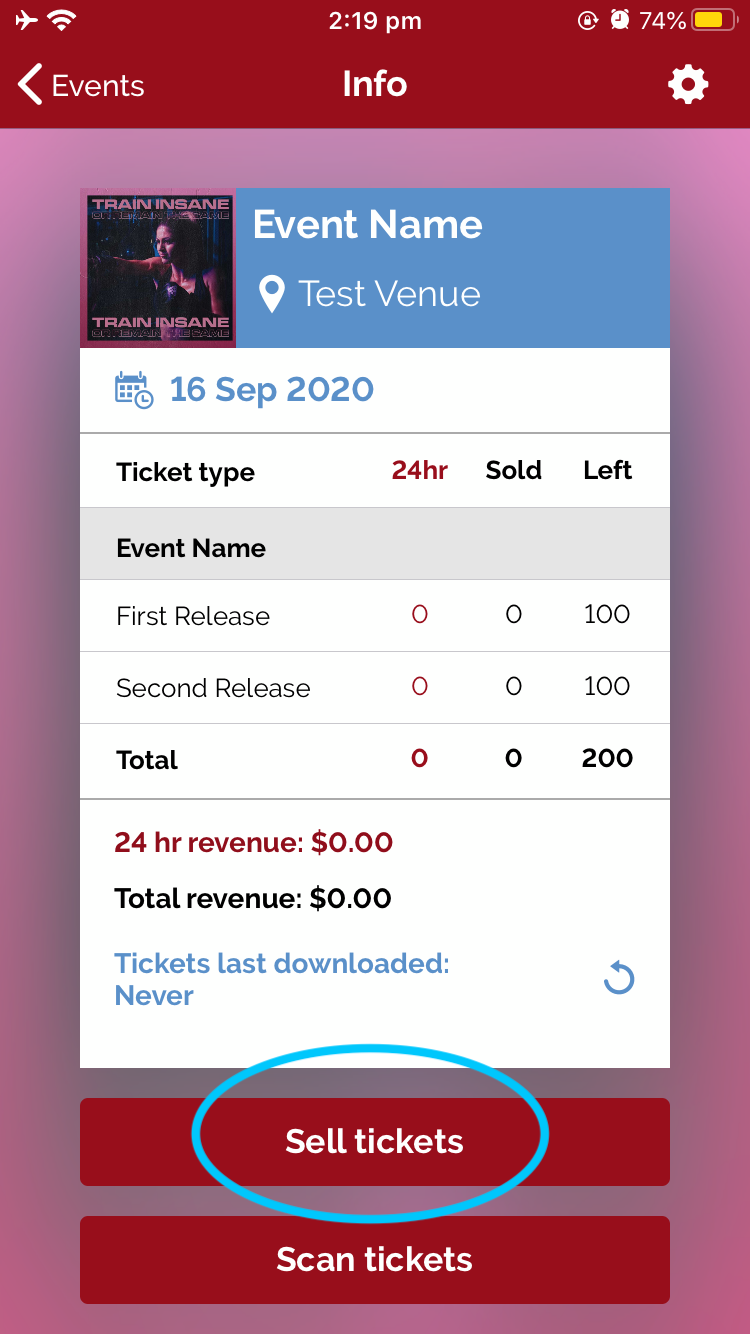
- Select “Sell Tickets”
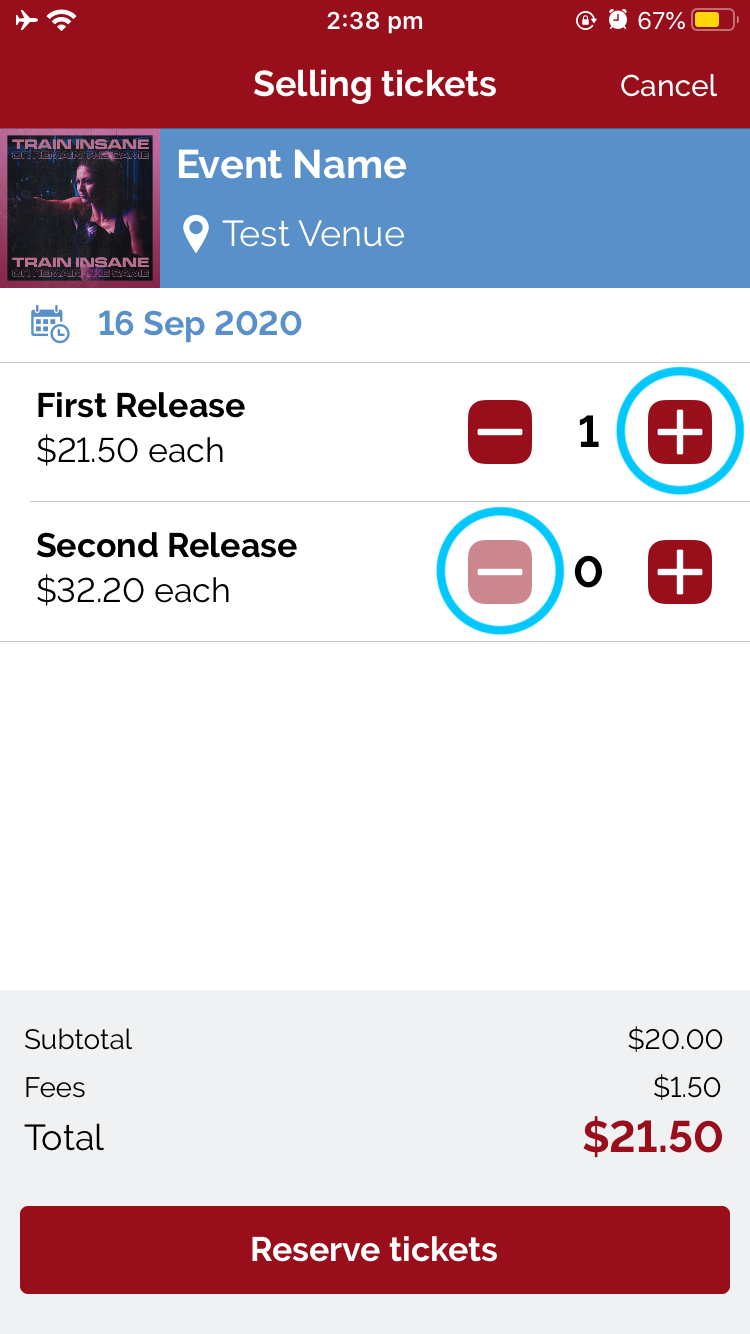
- Select “+/-” to select quantity of tickets and press "Reserve tickets"
- Select payment method:
- Pay by credit card (Only available in Australia) – If you are selling in Australia, the app can use the device camera to automatically read credit card details. Alternatively, the operator can enter the credit card details manually. Payments will be processed on the spot and added to event settlement.
- Pay by Cash – If this setting has been enabled in the dashboard, operators can process cash sales.
- Pay by Other – Thiscan be used to process sales on third party or non-integrated EFTPOS machines.
- Select “OK” when prompted with the message “Megatix app would like to access the camera”
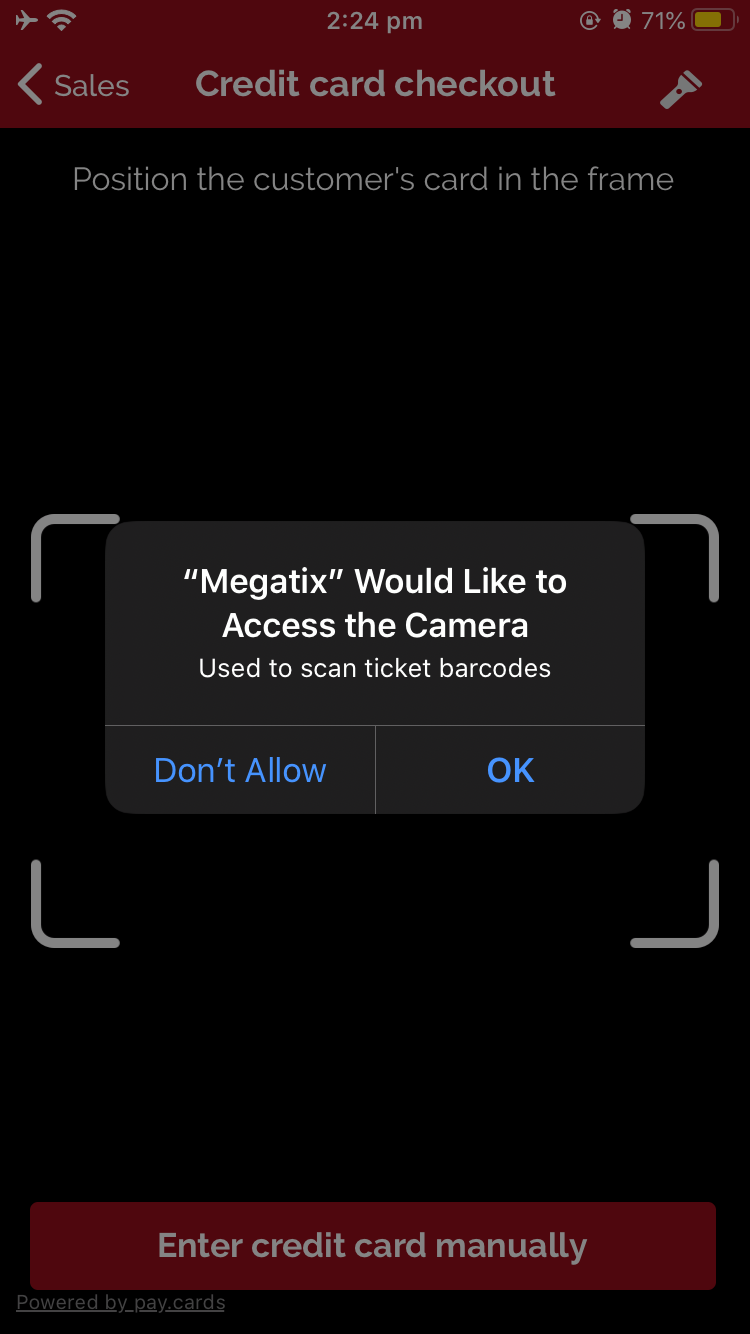
Paying with Credit Card using the Camera:
- Note: It is important to inform the customer that the camera is simply detecting the information on the card to automatically complete the fields, and not taking a photo of their card.
- Hold the card in front of the camera, fitting inside the template
- Once the card details have been detected the details will automatically appear on screen.
Pay with Credit Card using Manual Entry:
- Select “Enter credit card manually”
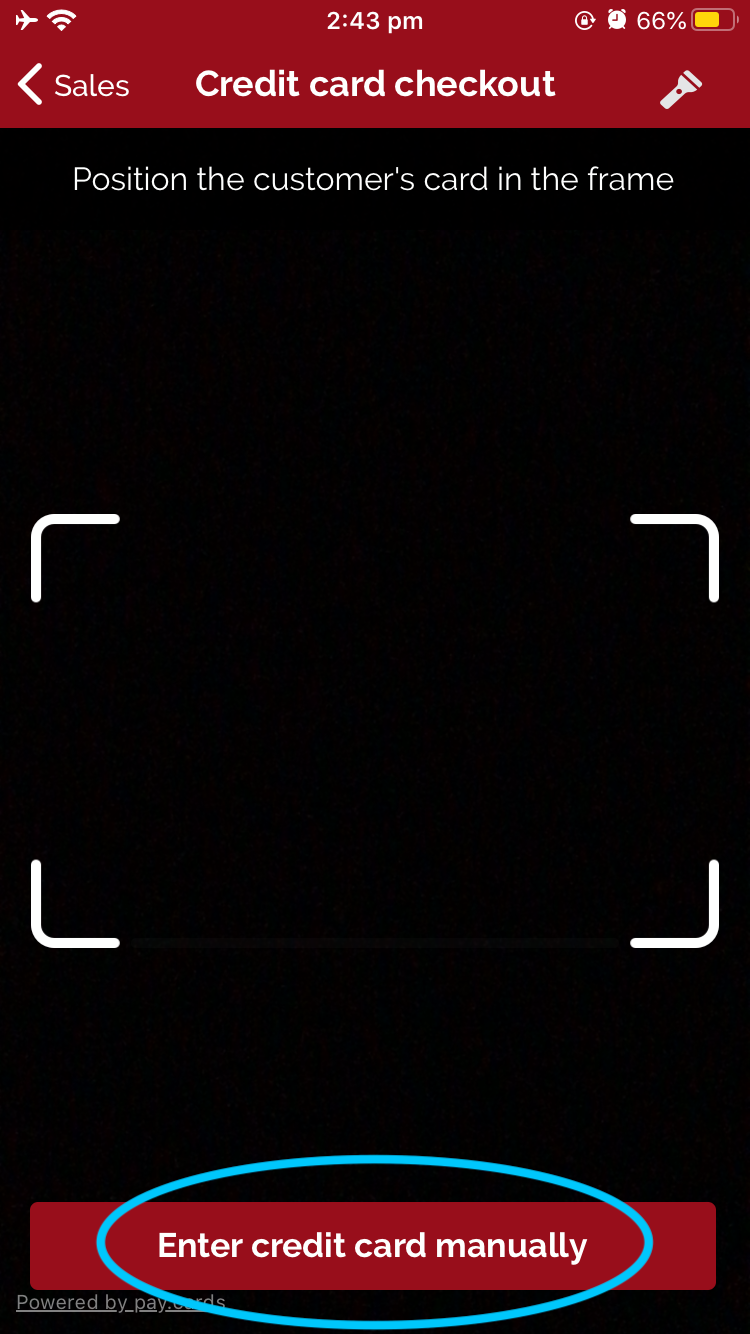
- Enter the Card Number, Expiry and CVC
- Select “Confirm and complete payment”
After a sale has been successfully processed, the operator is given the option to enter in customer details. If a customer’s email is added to this screen, the order confirmation and tickets will be immediately sent to that customer.