
Scan / Validate Tickets
Once you have logged in to the event you can begin to Scan Tickets.
To Scan tickets:
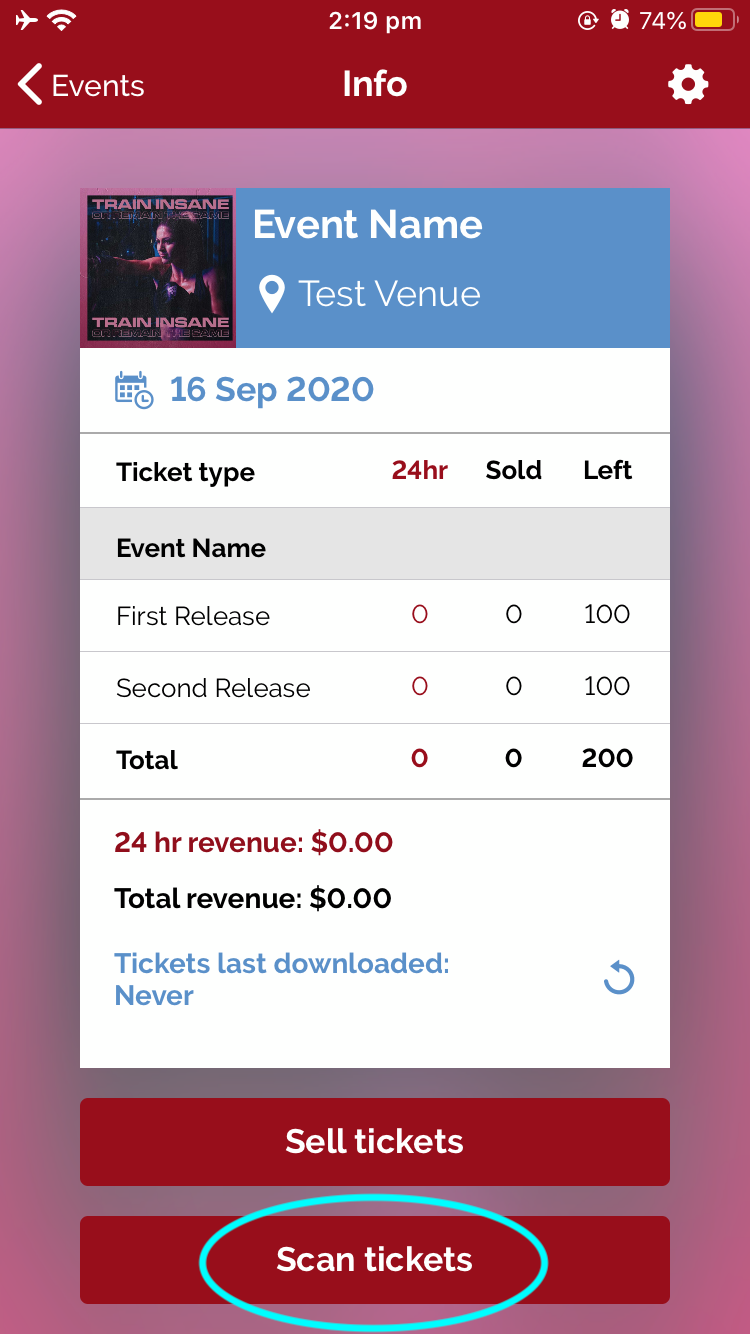
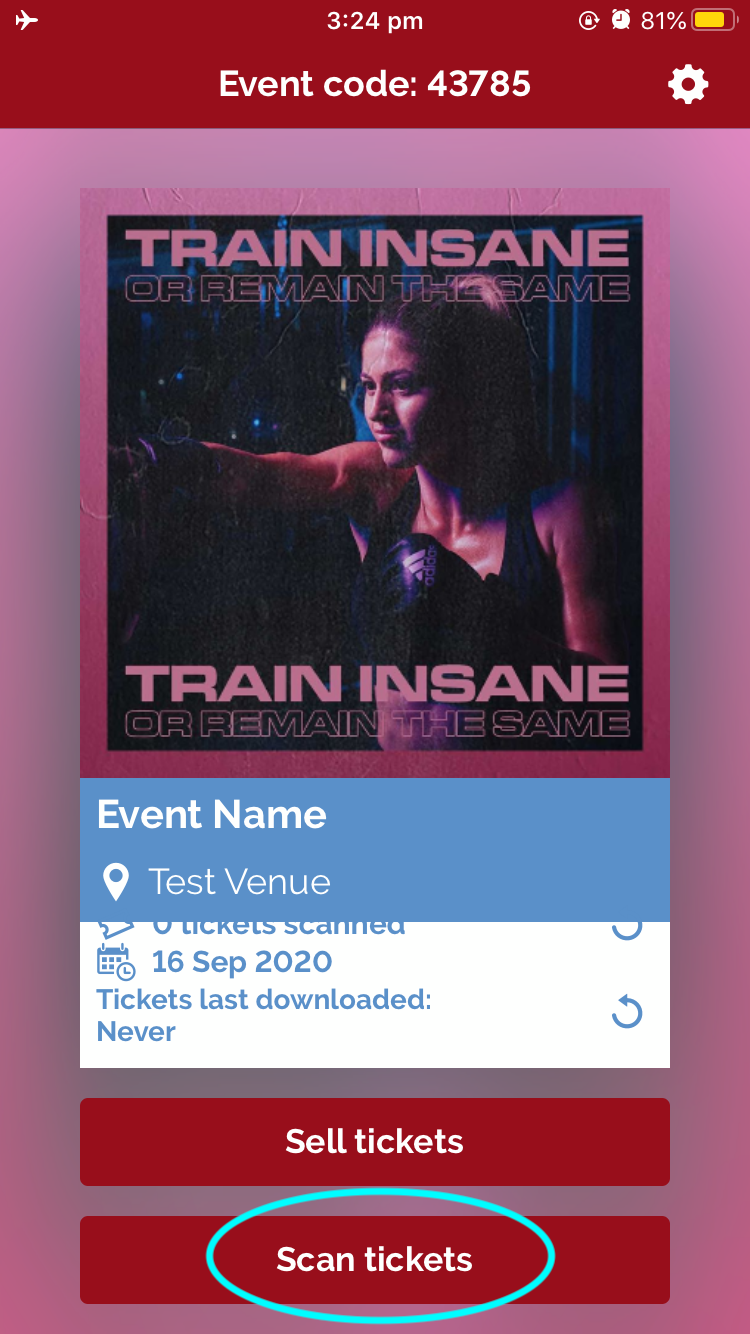
- Select “Scan tickets” on your chosen event
- Hold the QR code in front of the camera
- A Green screen will appear if the ticket is Valid
- A Red screen will appear if the ticket is Invalid
- A message will appear on the red screen with further information as to why the ticket is Invalid. Examples of Invalid tickets include:
- Ticket has already been scanned / claimed (this message will indicate the original scanned date and time).
- Ticket is invalid for the event – some events have similar names. Be sure to check the event name and event information including date and venue on the ticket.
- Correct Details – the ticket may be fraudulent with a fake QR code.
- Wrong Details – the customer will need to find the ticket for the correct event.
- A message will appear on the red screen with further information as to why the ticket is Invalid. Examples of Invalid tickets include:
- To scan the next ticket, select “OK” or anywhere on the screen
If you have a Child Event or multiple links for a particular event, please ensure you notify your Account Manager or [email protected] to have them linked prior to scanning.